
Start with Yard Ready
Published 2026-07-11 · Updated 2026-09-30
Use the Owner setup hub to check company defaults, equipment, customers, and a representative invoice before the first rental.
Before you start.
- Sign in as Owner.
- Have your company address, operating timezone, rates, and billing rules ready.
Steps.
Open Yard Ready
Take me there →Open Yard Ready and review the saved setup progress. Follow each task to its owning settings page, save there, and return to check the result.
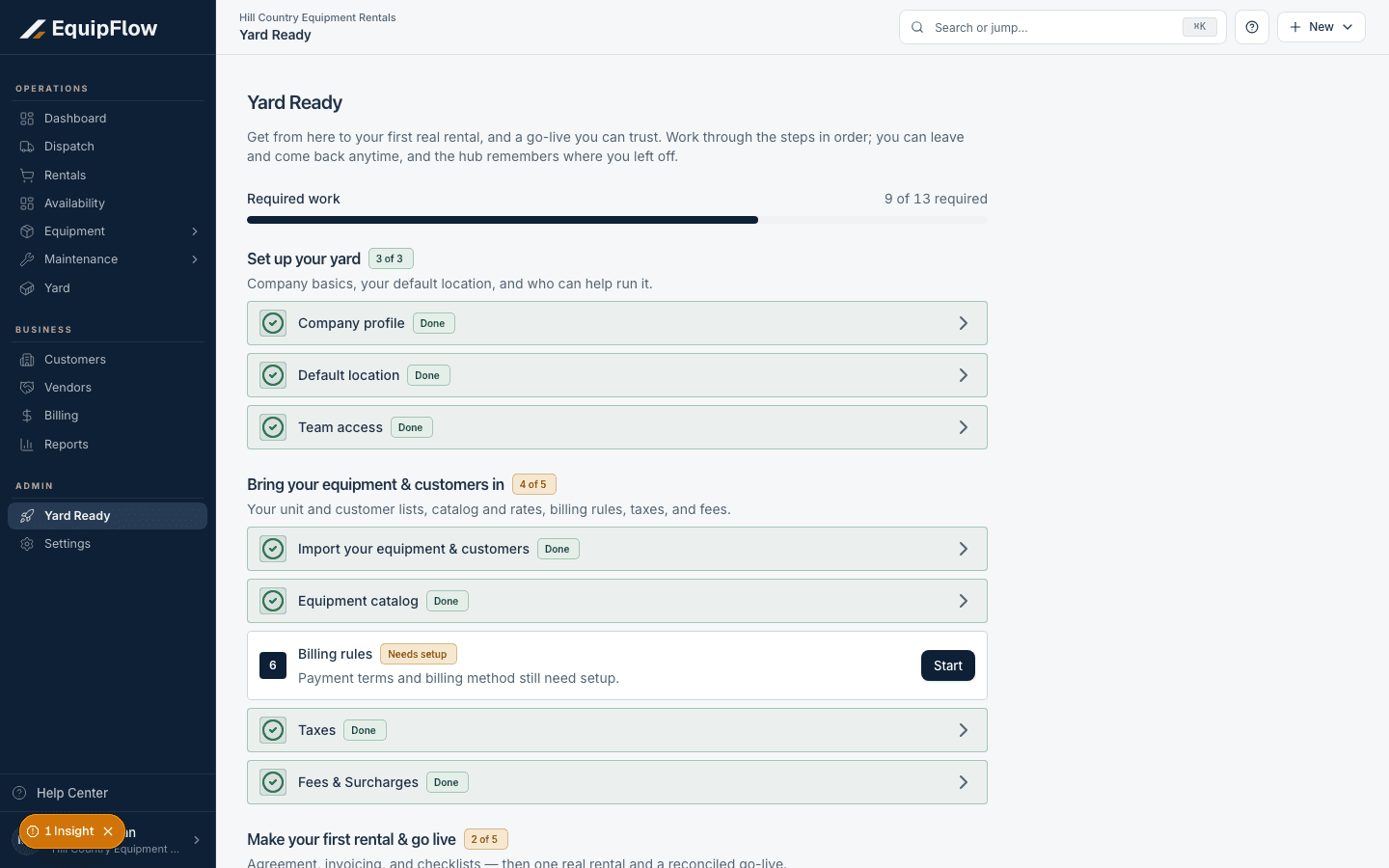
Yard Ready shows saved setup tasks and outstanding billing rules. Synthetic local example.
Open full-size screenshot (new tab)Set the defaults before entering rentals
Check company identity and timezone, the default yard, equipment classes and units, customers, inspection policy, and billing rules. Optional settings do not all need to be filled in to start working.
Check a representative invoice
Use a representative rental with known dates, rates, fees, and taxes for the invoice reconciliation check. Compare its result with a total you trust. Fix the source dates or terms before acknowledging a difference.
warning
Creating a draft does not approve it, send it, or collect payment. Keep the first billing check separate from customer delivery.
Common problems and recovery.
A setup tile is still incomplete.
Reopen its task, check missing required fields and defaults, then return and refresh.
The invoice total is unexpected.
Compare billing start and cutoff, rate tiers, billing method, fees, tax source, and previous billing. Use the billing terms guide before accepting the total.
Continue in EquipFlow.
Open the product to do the work, or contact support if the saved information does not match what this article describes.
Last reviewed 2026-09-30 against EquipFlow product commit c0ec0c7b7.