
Set default and customer prices
Published 2026-11-06 · Updated 2026-11-06
Set the daily, weekly, and monthly price for each equipment class, and add special prices for a customer or for all customers.
Before you start.
- An Owner, Dispatcher, or Yard Manager can change prices.
- Add your equipment classes first.
Steps.
Choose the equipment class
Take me there →Open Settings, then Rate cards, and choose the Equipment class. Prices apply to every unit in that class.
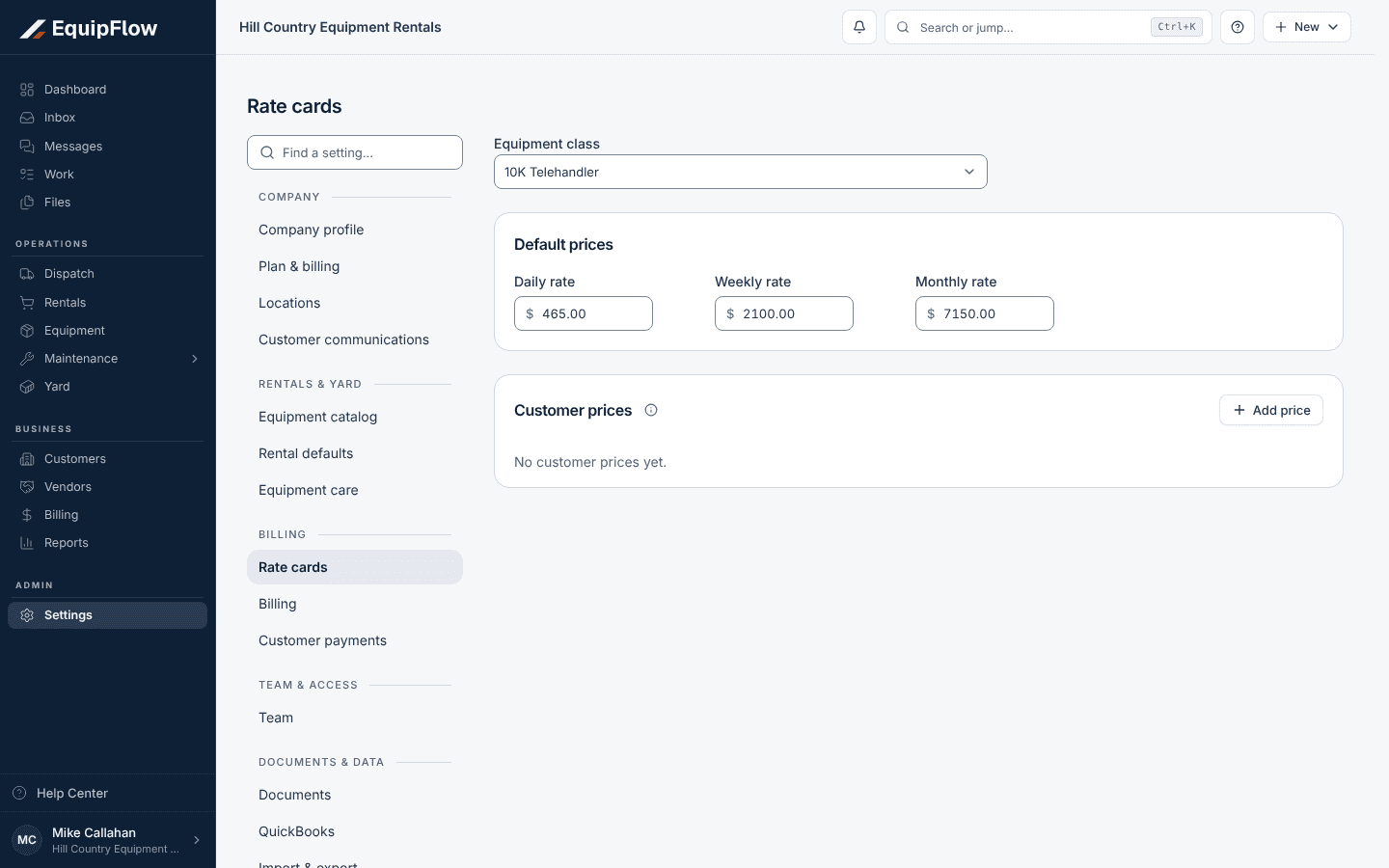
Rate cards hold each class's default prices and any customer prices. Synthetic local example.
Open full-size screenshot (new tab)Set the default prices
Under Default prices, enter the Daily rate, Weekly rate, and Monthly rate, then select Save changes. Setup's Equipment catalog step stays open until every class has at least one default price.
Add a customer price
Under Customer prices, select Add price. Choose the Scope: All customers for a standing price, or Customer for one account. Pick the Customer, enter the rates that differ, add Notes if useful, and select Save price.
A blank rate uses the default price. A Customer price wins over an All customers price.
warning
Use only All customers or Customer. Prices saved with Customer + region or Customer + job are not matched to quotes or rentals today, so those lines keep the default price.
Change or remove a price
Select the pencil on a row to open Edit customer price, then Save changes. To delete a price, select the trash icon, then Remove price.
New quotes and rental lines use the price that applies when the line is added. Lines already priced keep their rate. To change one rental's price, use Edit rates on its line.
Common problems and recovery.
Saving shows A rate card already exists for this product and scope.
That customer, or All customers, already has a price for this class. Edit the existing row instead of adding another.
Saving shows Choose a customer for this rate card scope.
Pick the Customer, or change the Scope to All customers.
A new rental line did not use the customer price.
Check that the price is on the same equipment class, with the Customer scope for that customer or the All customers scope. Fix the line with Edit rates.
Rate cards shows Add your first equipment class.
Select Add a Class to create the class, then come back to price it.
Continue in EquipFlow.
Open the product to do the work, or contact support if the saved information does not match what this article describes.
Last reviewed 2026-11-06 against EquipFlow product commit a5b344000.