
Create and send a quote
Published 2026-07-11 · Updated 2026-09-30
Price an offer, use Email Quote or a Shareable Link to deliver it, and understand why Mark as sent does not email the customer.
Before you start.
- Have a customer, site, rental window, and equipment class with rates.
- Have the intended recipient’s email if emailing.
Steps.
Start the quote
Take me there →Open Rentals and start a new quote. Choose the customer, site, contact, and dates. Use Open-ended when there is no fixed end date.
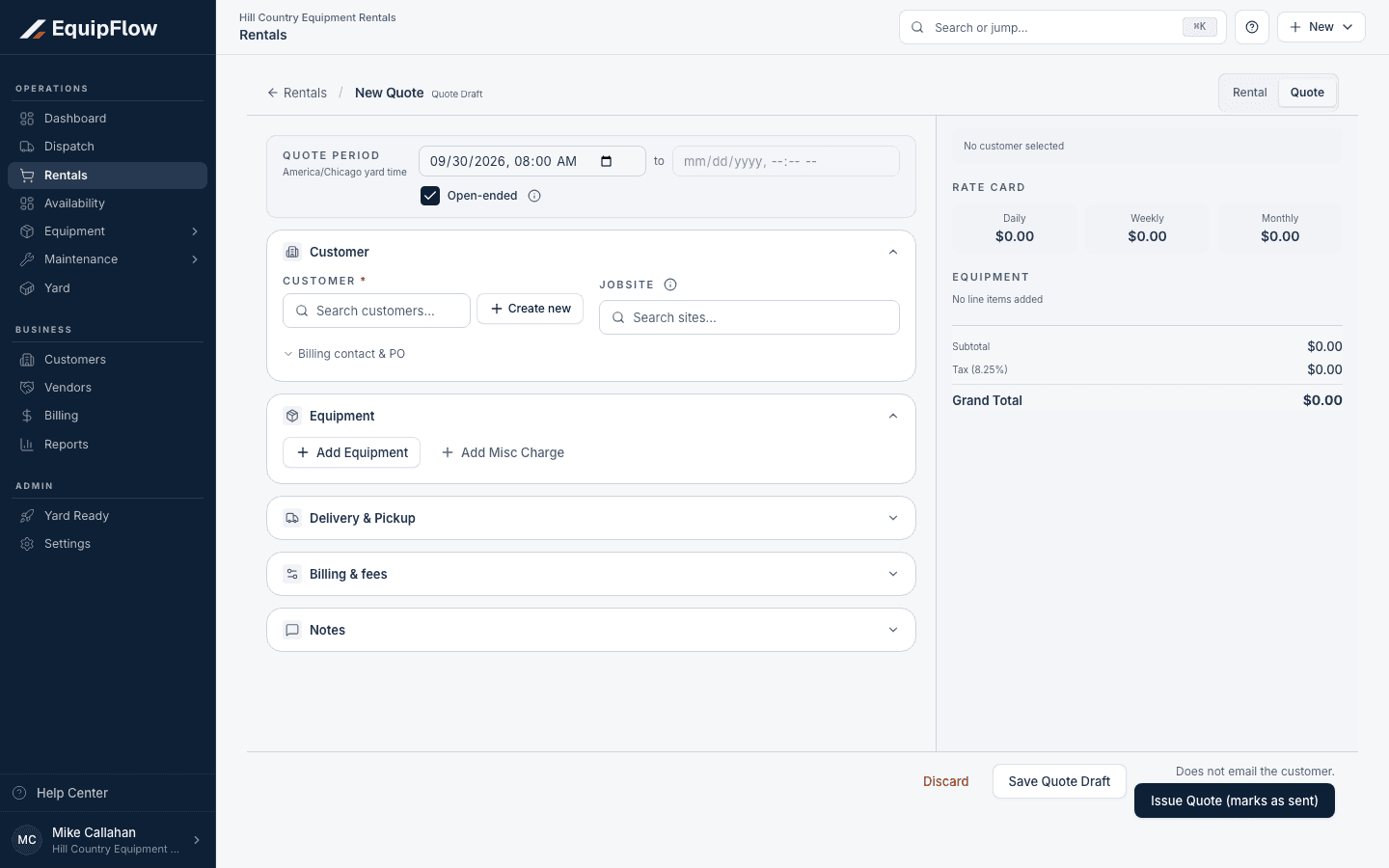
New Quote separates saving a draft from Issue Quote; issuing does not email the customer. Synthetic local example.
Open full-size screenshot (new tab)Review the priced offer
Add classes, quantities, rates, fees, and logistics. Check availability and totals. Save Quote Draft keeps a working draft; Issue Quote (marks as sent) records an issued offer without emailing. Review Customer notes and keep office-only information in Internal notes.
Deliver the quote deliberately
Open the saved quote and choose Email Quote to send email, or Shareable Link to copy a secure customer link. Check the email result and recipient after sending. Mark as sent records status only; no email is sent.
warning
Sending an offer does not reserve equipment. Acceptance checks availability and may hold capacity; conversion creates the rental record. Review the converted rental before confirming it.
Common problems and recovery.
The customer did not receive the quote.
If you used Mark as sent, use Email Quote or send the share link yourself. Otherwise check the recipient and email outcome before retrying.
The quote cannot be accepted or converted.
Review its current status and the availability conflict. Correct the dates or equipment rather than creating duplicate work.
Continue in EquipFlow.
Open the product to do the work, or contact support if the saved information does not match what this article describes.
Last reviewed 2026-09-30 against EquipFlow product commit c0ec0c7b7.