
Schedule and complete dispatch work
Published 2026-07-11 · Updated 2026-09-30
Add a dispatch job, Arrange trip, and review what was actually reported; pickup and yard receipt are separate steps.
Before you start.
- Have the rental or transfer details, addresses, equipment quantities, and required date.
- Owner, Dispatcher, or Yard Manager can create jobs and arrange trips. The assigned Driver handles their own field work.
Steps.
Add the job
Take me there →An Owner, Dispatcher, or Yard Manager chooses Add dispatch job on Dispatch or the rental. Enter what goes, origin, destination, and when it is needed. Exact units can be chosen later.
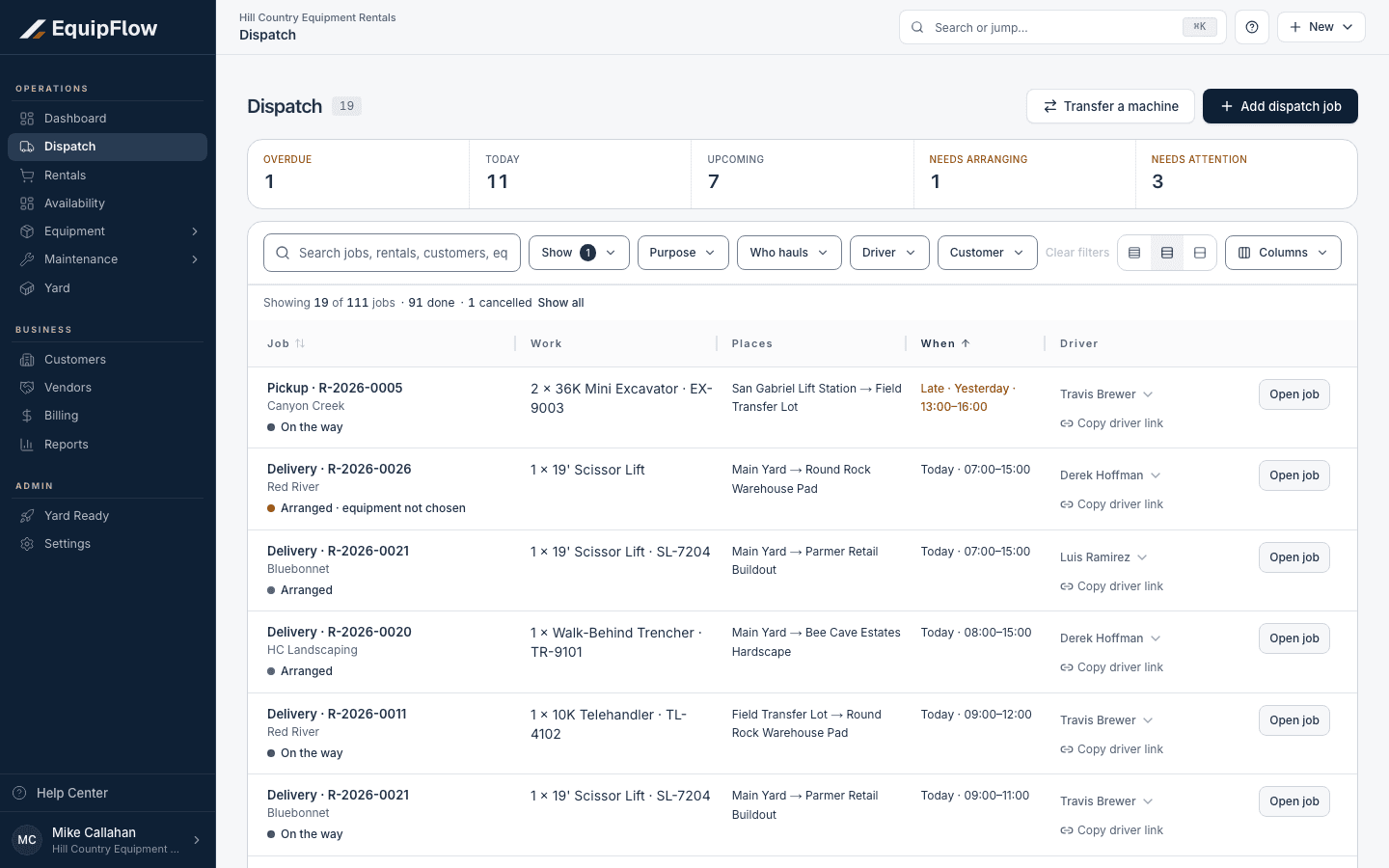
Dispatch lists jobs with Open job and Copy driver link. Synthetic local example.
Open full-size screenshot (new tab)Open job and Arrange trip
Use Open job, then Arrange trip. Choose the load, date, and who hauls it: our driver, a carrier, or the customer. Split a large job across trips. Read readiness blockers; Arranged means the plan is set.
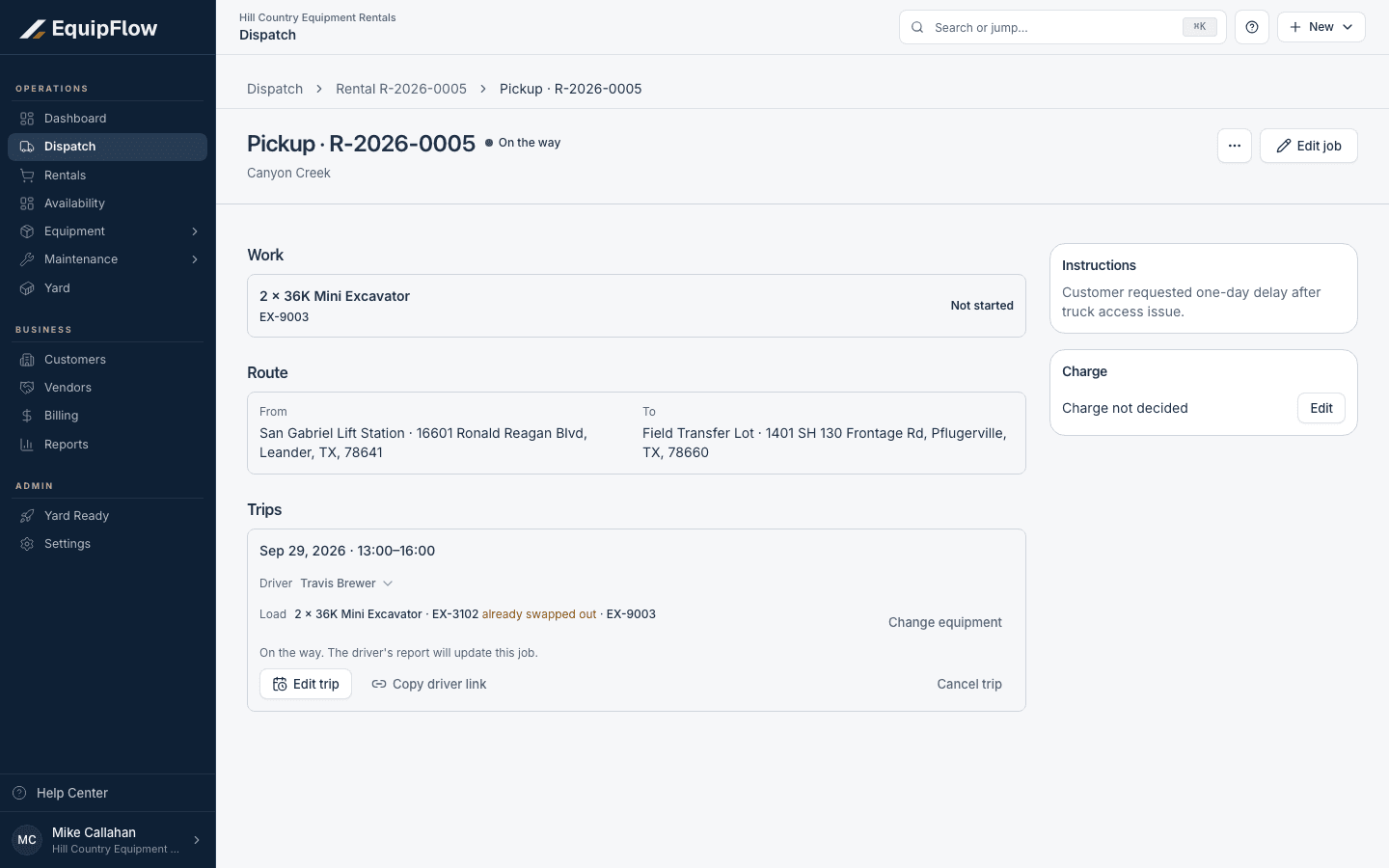
A pickup job separates its work, route, trips, instructions, and charge. Synthetic local example.
Open full-size screenshot (new tab)Record what happened
The assigned Driver opens the trip in the driver app; a carrier or customer can use a driver link. In Record what happened, enter the actual units or quantities and time, then add requested proof. Use the trip’s displayed action: Mark delivered for delivery or Mark picked up for pickup; transfers and mixed work have their own labels. For a partial or failed visit, select the actual outcome and use Send what was done or Send: couldn't complete. Read the server confirmation: completed delivery shows Work recorded.; pickup shows Picked up. and the receiving yard. If dispatch is checking the report, wait for its review. A pickup report does not check the equipment back into the yard.
Review the report and receive pickups
Check job progress and any Check the driver’s report prompt. A collected machine remains on its way until Yard uses Receive in Yard. Verify location and custody after receipt.
warning
A reported pickup does not certify readiness, stop charges at an earlier call-off, close the rental, or send an invoice.
Common problems and recovery.
The trip cannot be arranged.
Read the specific date, hauler, unit, origin, or readiness blocker. Resolve it in the linked record, then reopen the job.
The plan changed or the visit failed.
Use Edit trip or Reschedule trip where offered. If the work is no longer needed, use the job menu’s Cancel remaining work; review charges separately.
The report does not match the plan.
Read the driver’s reported time, quantities, and units. Resolve the report review on the job before arranging duplicate work.
Continue in EquipFlow.
Open the product to do the work, or contact support if the saved information does not match what this article describes.
Last reviewed 2026-09-30 against EquipFlow product commit c0ec0c7b7.