
Import equipment and customers from a spreadsheet
Published 2026-11-06 · Updated 2026-11-06
Bring locations, equipment, customers, jobsites, and open rentals into EquipFlow from CSV files, in the right order, without creating duplicates.
Before you start.
- An Owner, Dispatcher, or Yard Manager can import. Only an Owner can export.
- Save each list as a CSV file of up to 5,000 rows and 5 MB.
Steps.
Import in the right order
Take me there →Open Settings, then Import & export. Under Equipment, import Locations, Categories, Products, then Units. Under Customers, import Customers, then Customer contacts and Customer sites. Import Open rentals last.
Each list refers to the ones before it by name. A list marked Needs prereqs is waiting on an earlier one.
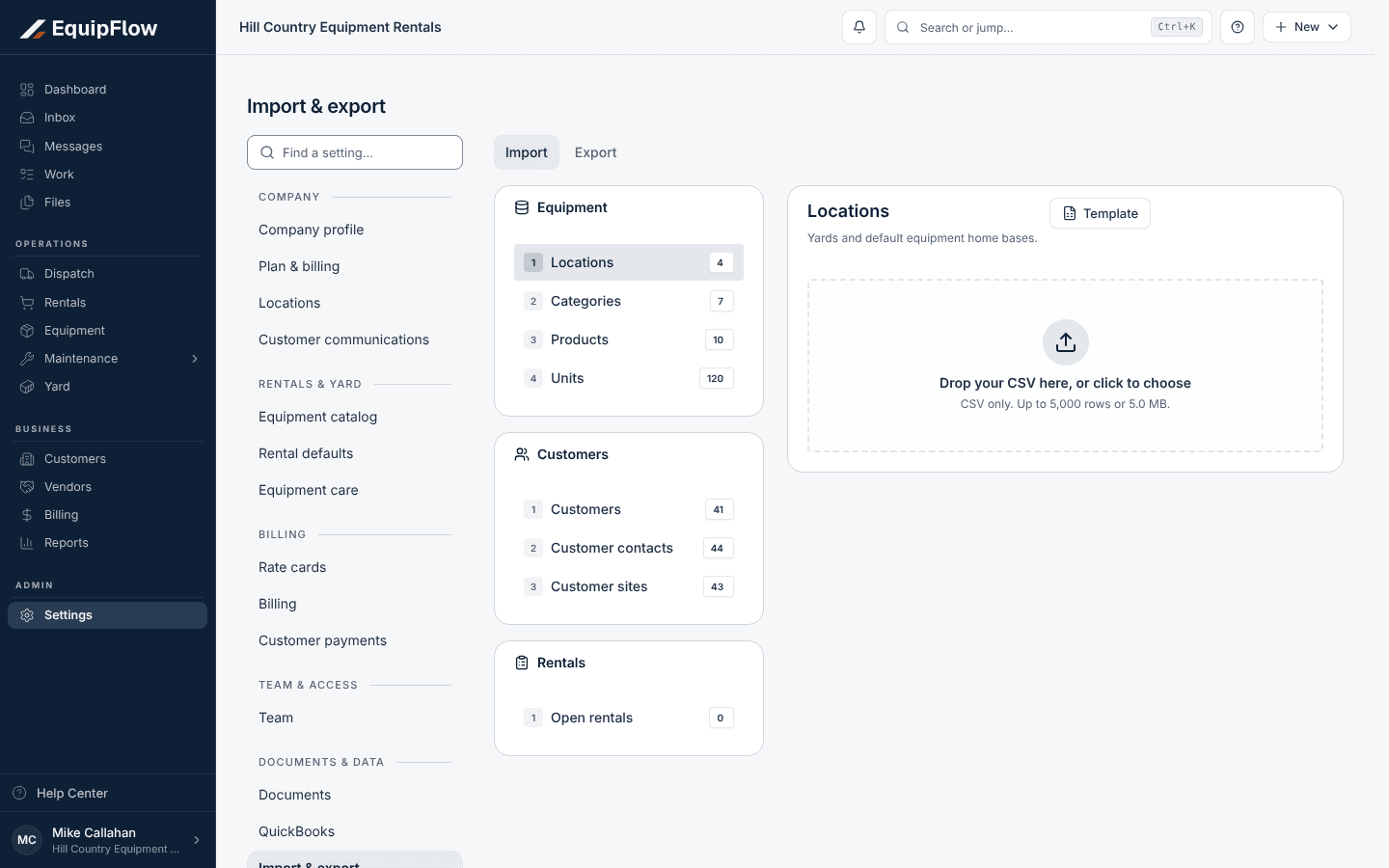
Imports run in order, starting with locations. Synthetic local example.
Open full-size screenshot (new tab)Download the template and upload your file
Select Template to download the columns EquipFlow expects, and copy your data into it. Drop the file on Drop your CSV here, or click to choose.
Map columns and fix problem rows
Under Map your columns, match each of your columns to an EquipFlow field until it shows All required fields mapped. Read the Live preview and Import preflight. Select Error CSV to download the rows that need fixing, correct them in your file, and upload it again.
Confirm and create the records
Under Confirm & import, tick I reviewed the preview and want to create these records. To leave bad rows for later, tick Skip invalid rows and import the rest. Select the Create button, which shows how many records it will add.
Import only adds new records. A row that matches an existing record is refused, never merged.
warning
Open rentals start billing from the On Rent Date in your file, or the day after Billed Through Date if your old system already billed them. Check those dates before you import.
Export your data
Take me there →As an Owner, open the Export tab. Select Export current to download a list as it stands now, or Blank template for an empty file.
Common problems and recovery.
The list shows Prerequisites missing.
Import the lists it names first. For example, Units need Products, and Products need Categories.
Rows fail with Customer already exists, Category already exists, or a similar message.
Those records are already in EquipFlow. Remove the rows from your file, or tick Skip invalid rows and import the rest.
Uploading shows This file has 6000 rows. Max per import is 5000., or File is larger than 5.0 MB.
Split the file into parts of up to 5,000 rows and 5 MB, and import each part.
Importing shows Fix issues first, or toggle “Skip invalid rows” to continue.
Fix the rows listed in Error CSV, or tick Skip invalid rows and import the rest.
Continue in EquipFlow.
Open the product to do the work, or contact support if the saved information does not match what this article describes.
Last reviewed 2026-11-06 against EquipFlow product commit a5b344000.