
Add customers, contacts, and jobsites
Published 2026-11-06 · Updated 2026-11-06
Create a customer with the right account type, add the contacts and jobsites rentals bill and deliver to, and set credit terms.
Before you start.
- Have the customer's name and, ideally, phone, email, billing address, and first jobsite.
- Only Owners, Dispatchers, and Sales Managers can save Billing Defaults on an existing customer. Only Owners can merge or delete customers.
Steps.
Create the customer
Take me there →Choose New in the top bar, then Customer, or New customer on the Customers page. Enter the Customer name and choose the Account type: Credit, COD, or Cash. Add phone, email, Tax ID, Credit limit, and Tax exempt with its certificate number if they apply, then the billing address and Primary contact. Choose Create customer.
If the customer may already exist, a warning names the match. Open that customer instead of creating a second one.
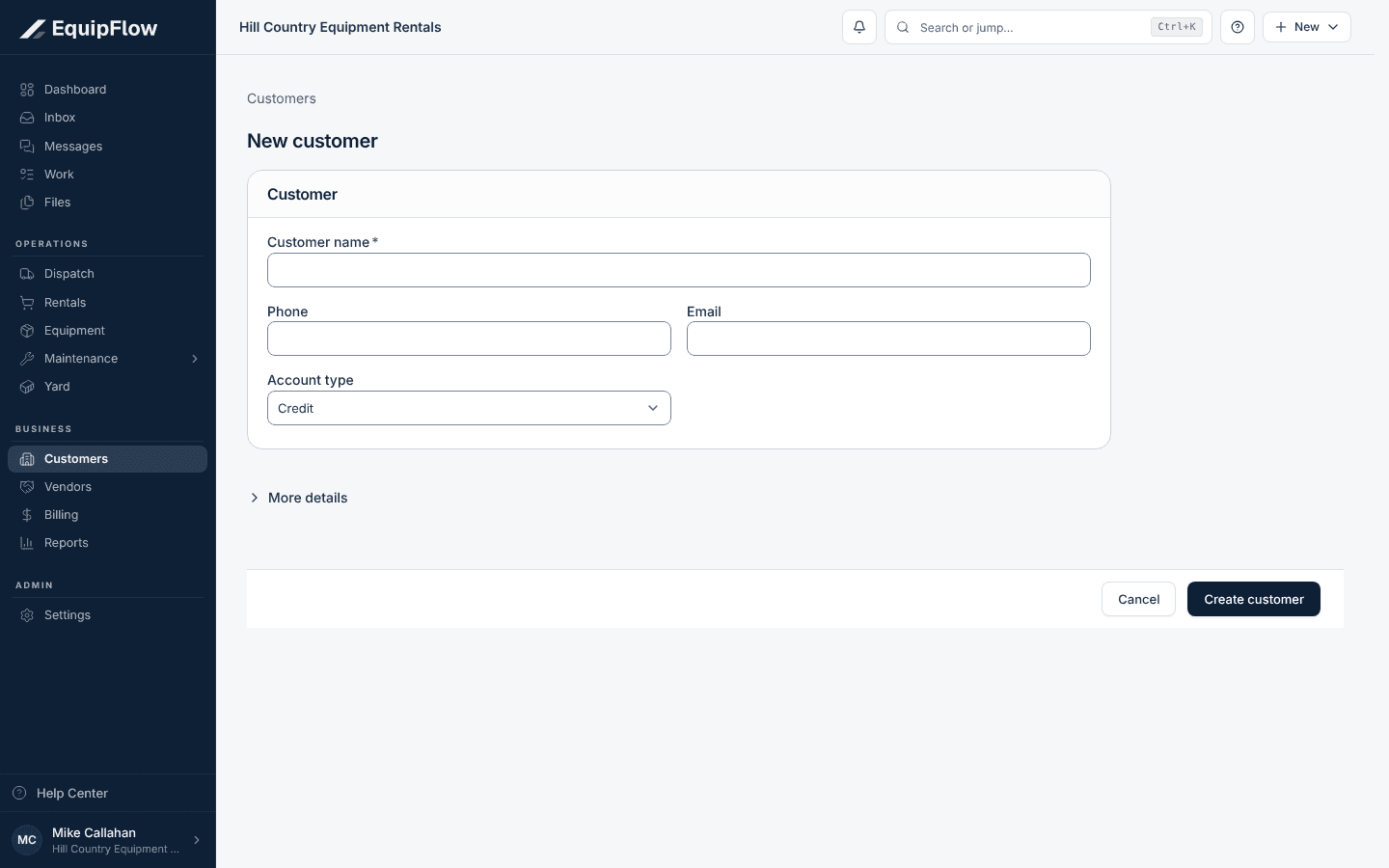
A new customer needs only a name to start. Synthetic local example.
Open full-size screenshot (new tab)Add jobsites and contacts
Take me there →On the customer's page, open Sites & contacts. Choose Add site and enter the Site Name, address, Site Contact, PO Number, and Tax Rate if the site has its own. Choose Add contact for each person who orders, receives, or pays.
You can also create a customer, site, or contact from the pickers while writing a rental or quote.
Set credit and billing defaults
On the customer's Billing tab, open Billing Defaults and choose Edit. Set the billing cycle, payment terms, Account Type, Credit Hold with a reason, Credit Limit, and Tax Exempt, then save. Other roles cannot save these changes.
A credit hold warns whoever starts a new rental for this customer. They can continue, and that is recorded.
Start work from the customer
Choose New rental at the top of the customer page, or New quote from the ⋯ menu. The customer is filled in for you. The Rentals and Billing tabs show their open work and what they owe.
Common problems and recovery.
A site or contact does not appear in the rental's pickers.
Check that it is active on Sites & contacts and belongs to the customer on the rental. Reactivate it or add it there.
Saving a site says Site name is required.
Give the site a name the crew will recognize, such as the job or street name, then save.
You created the same customer twice.
Ask an Owner to open one of them and choose Merge duplicate from the ⋯ menu. Do not delete a customer that has rentals or invoices.
A Sales Rep or Sales Manager opens a jobsite and sees This page could not be accessed.
Jobsite pages open for Owners, Dispatchers, and Yard Managers. Sales roles see and edit the site's details on the customer's Sites & contacts tab.
Continue in EquipFlow.
Open the product to do the work, or contact support if the saved information does not match what this article describes.
Last reviewed 2026-11-06 against EquipFlow product commit a5b344000.