
Set up preventive maintenance and create the work
Published 2026-11-06 · Updated 2026-11-06
Create service templates by days or hours, then turn due maintenance into work orders or defer it with a reason.
Before you start.
- Owner, Yard Manager, or Service Manager creates templates. Anyone who can open work orders can create them from due maintenance.
- Add equipment categories first.
Steps.
Create a template
Take me there →Open Settings, then Equipment care, and choose Preventive maintenance. Select New template. Enter the Template name and Service type, an Interval (days), an Interval (hours), or both, and Due soon (days) or Due soon (hours). Tick the categories under Applies to categories and select Create.
Saving enrolls every machine you own in those categories, or every machine if none is ticked. Machines added later join within the hour.
Keep meter hours current
Hour-based maintenance comes due only from recorded meter hours. Enter hours when a return or a Yard board card asks for them.
Create work orders from the due list
Take me there →Open Maintenance, then Preventive maintenance. Each item says how overdue it is or when it is due. Items that have come due can be ticked: choose who to assign them to and select Create work orders, or use Create work order on one item. Completing that work order clears the item.
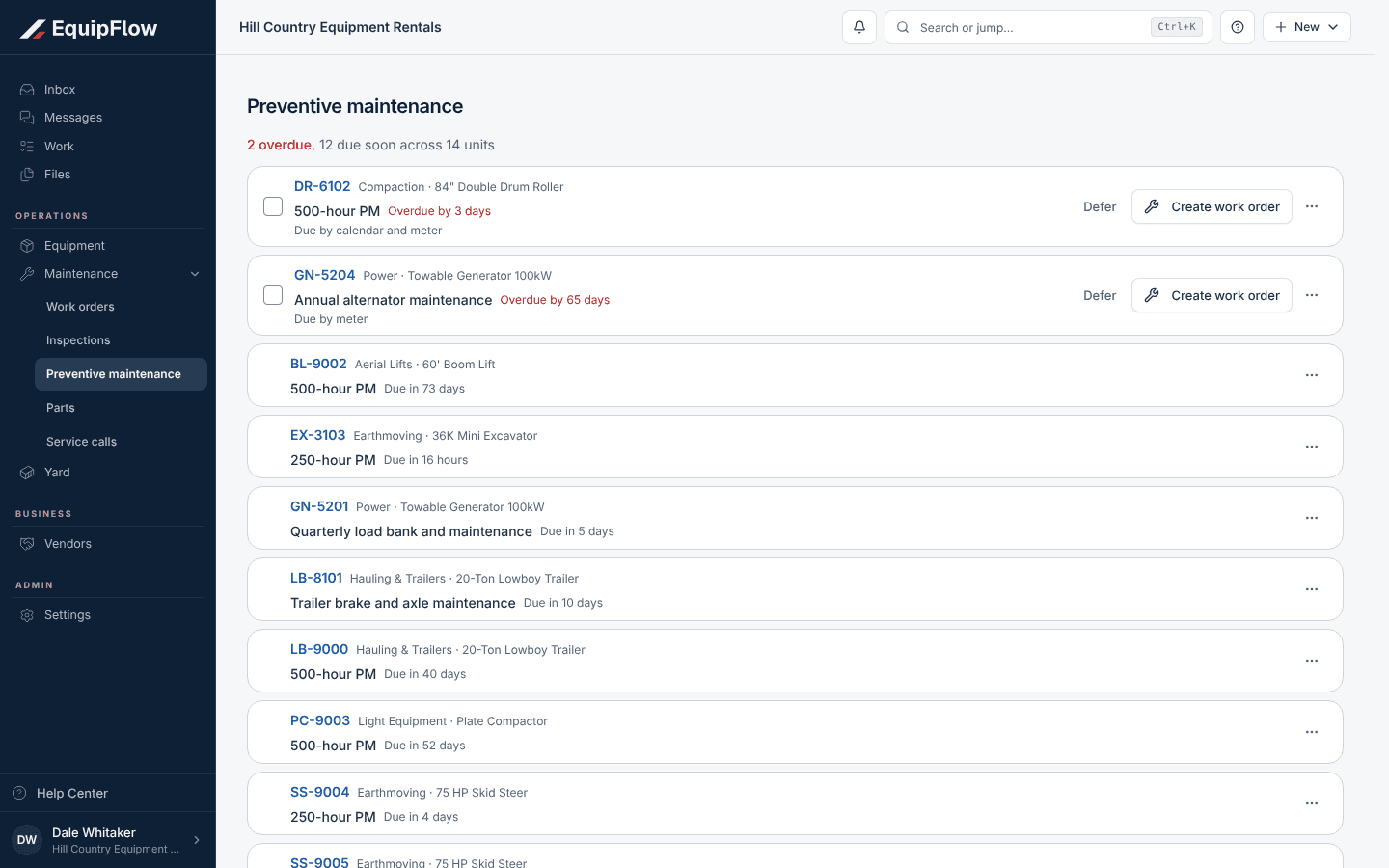
Preventive maintenance lists what is overdue or due soon. Synthetic local example.
Open full-size screenshot (new tab)Defer what can wait
Select Defer on an item, set Defer until, add a reason, and select Defer. Owner, Dispatcher, Yard Manager, or Service Manager can defer.
Common problems and recovery.
Equipment care says Equipment setup required.
Templates apply to categories. Add a category in Settings, Equipment catalog first.
Saving says Name and service type are required.
Fill in Template name and Service type, then select Create again.
Machines still show due maintenance after a template was deleted.
Deleting a template removes only the template. Schedules already on machines stay; defer or complete them.
Continue in EquipFlow.
Open the product to do the work, or contact support if the saved information does not match what this article describes.
Last reviewed 2026-11-06 against EquipFlow product commit a5b344000.