
Run service calls and recurring service plans
Published 2026-11-06 · Updated 2026-11-06
Schedule fuel, cleaning, swap, haul, and inspection visits on a rental, have them completed in the field, and set up visits that repeat.
Before you start.
- Owner or Dispatcher creates, assigns, and cancels service calls and plans. Yard Manager, Service Manager, Service Technician, and the assigned Driver complete them.
- Every service call belongs to an open rental.
Steps.
Create the service call
Take me there →Open Maintenance, then Service calls, and select New service call, or use New service call on the rental's Service tab. Choose the Customer and Rental, the Task (Fuel, Clean, Swap, Haul, Inspect, or Other task), the Scheduled date, and the Driver. Use Add item for each item, add Instructions for driver, and select Create service call.
Send it to the field
On the service call, use Assign driver or Reassign driver. For someone without an EquipFlow login, select Copy driver link and send it. While the link is on, the call shows Link on until a date; select Turn off there when you are done.
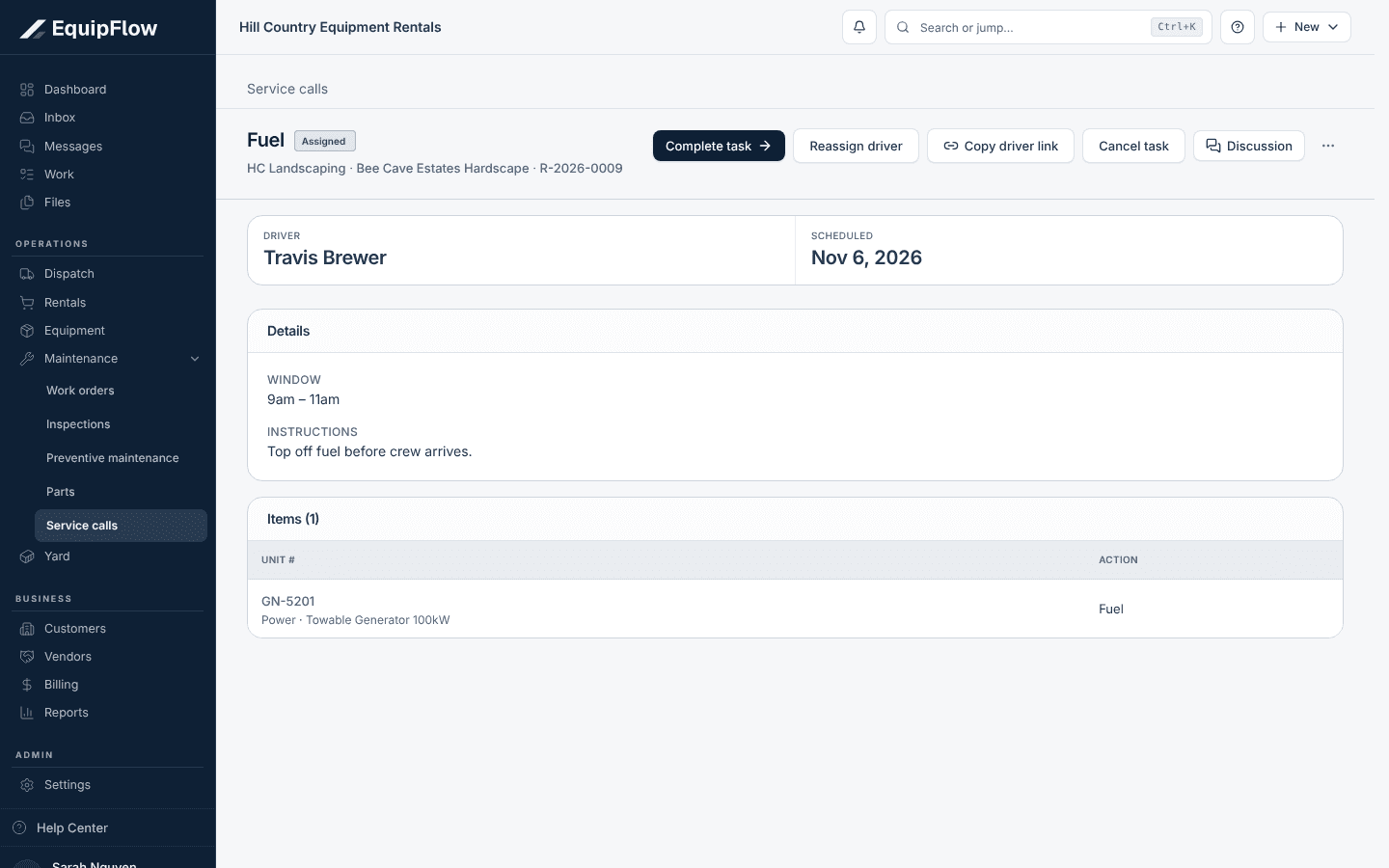
A service call shows who is doing it, when, and what to service. Synthetic local example.
Open full-size screenshot (new tab)Complete the visit
The assigned driver opens it from My trips. Others select Complete task on the service call. Enter the quantities, add Photos or files and Signed by, and select Complete task. If the phone is offline, the entry stays on the device until it is sent.
Bill the work
On a completed call, select Review service charges. An Owner or Dispatcher sets any missing rate on Service charges and adds the charges to a draft invoice.
Set up a recurring plan
Take me there →Open the Plans tab and select New plan. Choose the Rental, Task, Site, Driver, and units, set the repeat to Days of the week or Every N days, and select Create plan. The plan adds service calls up to a week ahead. Select Pause to stop it for a while. Owner and Dispatcher create and pause plans.
Common problems and recovery.
Create service call is unavailable and says Select the rental this task belongs to.
Pick an open rental for the customer. If the list says No open rentals, confirm the rental first.
Completing says Enter required quantities to complete.
Enter a quantity on each item, then select Complete task.
Completing says Task is no longer assigned to you.
Dispatch reassigned or cancelled the call. Check My trips or ask dispatch.
Completing says Completion is not yet confirmed. Reconnect and retry.
Keep the page open, reconnect, and select Complete task again. Your entry is still saved on the device.
Continue in EquipFlow.
Open the product to do the work, or contact support if the saved information does not match what this article describes.
Last reviewed 2026-11-06 against EquipFlow product commit a5b344000.