
Check availability and understand why a unit is unavailable
Published 2026-07-11 · Updated 2026-09-30
Check the requested rental window and follow the exact commitment, possession, inspection, or service record that blocks a unit.
Before you start.
- Know the requested start and end dates and equipment class.
Steps.
Choose the rental window
Take me there →Open Availability and select the requested dates. Compare class capacity and individual units. A machine out today may still cover a later window.
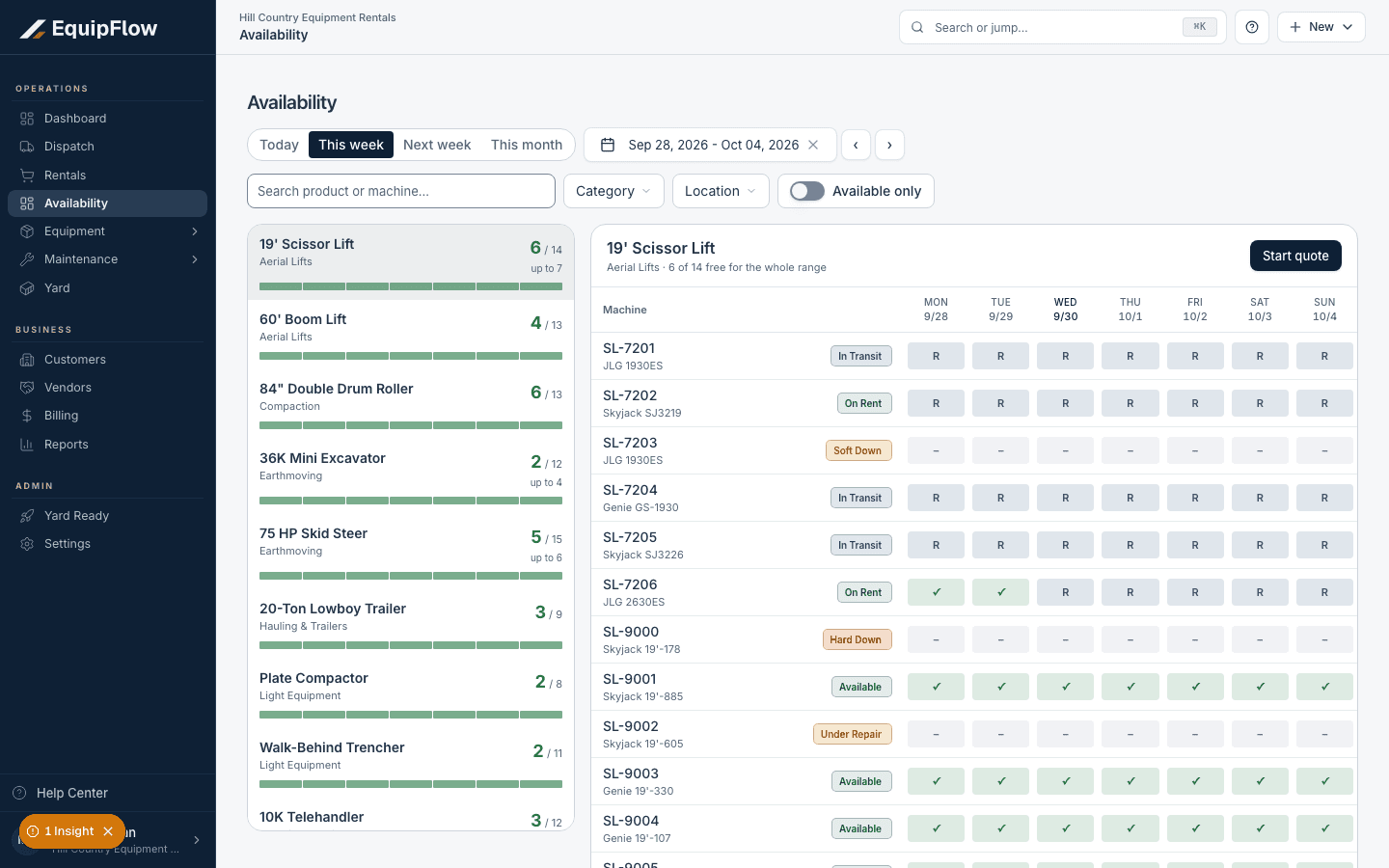
Availability shows the chosen date window and individual machine commitments. Synthetic local example.
Open full-size screenshot (new tab)Read the unit explanation
Open the unit and review location, possession, assignments, future commitments, readiness, inspections, and service. An idle machine can still be committed or not ready.
Resolve the owning record
Follow the linked rental, dispatch job, Yard turn, inspection, or work order. Sales roles can review rental and availability facts; ask an operational role to resolve Yard, Dispatch, or Service work.
warning
Do not force Available to conceal an unresolved return or service blocker. Unassigned class demand does not identify an arbitrary machine as committed.
Common problems and recovery.
A returned machine is still unavailable.
Check receipt, inspection, cleaning, fuel, damage, work orders, and future commitments. Finish the displayed next action.
The unit says Needs Review.
Read the conflicting records and ask support if the history cannot be reconciled. Do not certify readiness without evidence.
Continue in EquipFlow.
Open the product to do the work, or contact support if the saved information does not match what this article describes.
Last reviewed 2026-09-30 against EquipFlow product commit c0ec0c7b7.