
Take card and bank payments online
Published 2026-11-06 · Updated 2026-11-06
If your account has online payments turned on, connect Stripe, collect card or bank payments on invoices and deposits, and refund them.
Before you start.
- Online payments must be turned on for your account. If Settings, Customer payments shows Unavailable and "Contact EquipFlow to enable payments.", contact EquipFlow support.
- Only an Owner connects Stripe. Owners and Dispatchers collect and refund payments.
Steps.
Connect Stripe
Take me there →As an Owner, open Settings, then Customer payments, and choose Connect Stripe. Finish the steps Stripe asks for, then choose Refresh status.
The status reads Connected once Stripe accepts the account, with a line showing whether cards, bank payments, and payouts are enabled. Until you connect, the collect buttons don't appear anywhere.
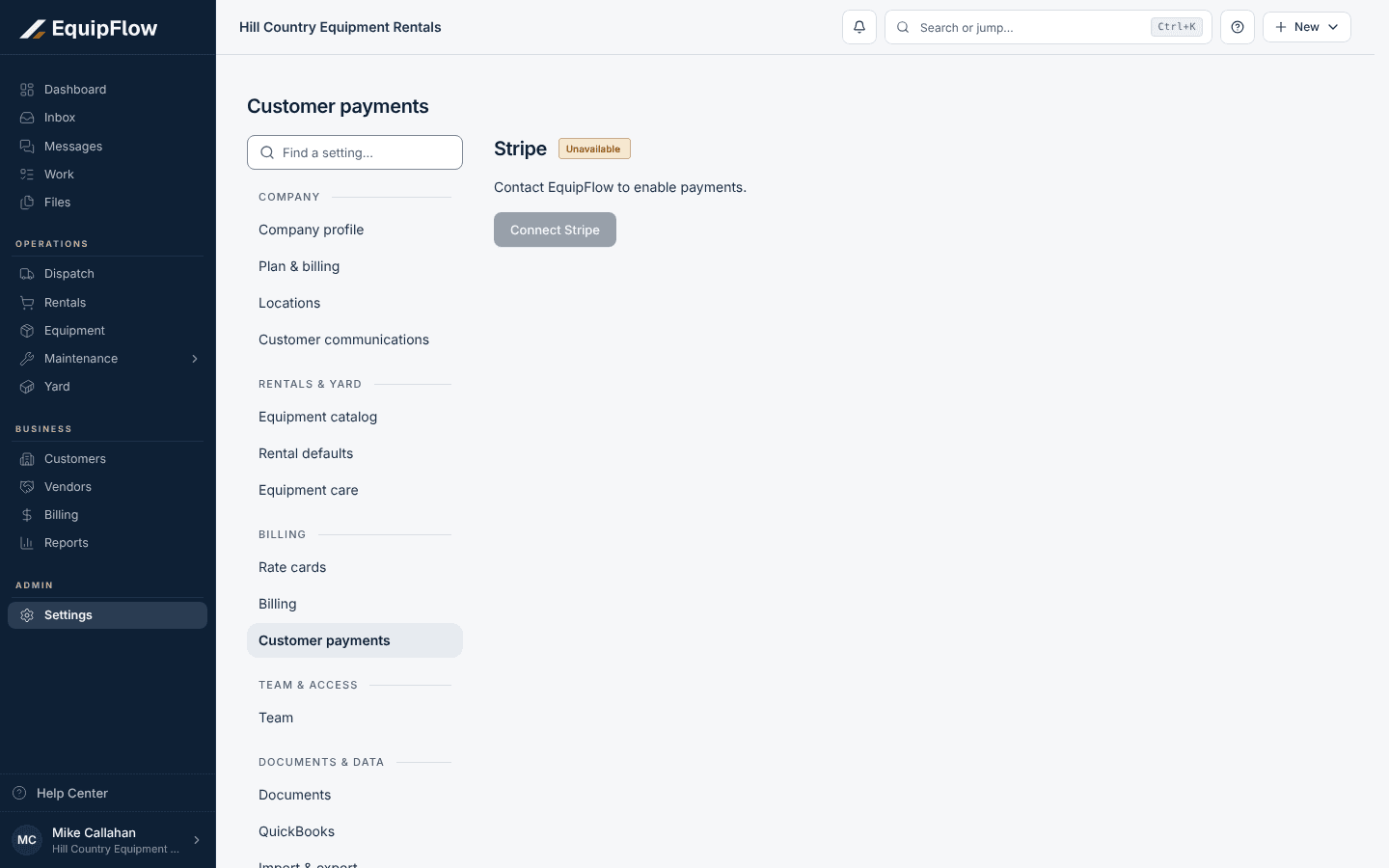
Before online payments are turned on for your account, Stripe shows Unavailable. Synthetic local example.
Open full-size screenshot (new tab)Collect a payment in person
Open an unpaid invoice and choose Collect payment. For a deposit, choose Collect deposit on the rental. Check the amount, then pick how the customer pays: Customer phone — QR or link, This device — customer checkout, or Card reader, which appears only when your account has a reader set up.
Wait until the dialog shows Payment received before releasing equipment.
Let customers pay from the invoice email
When online payments are on, the invoice email offers View and pay invoice. The customer chooses Pay invoice, enters an amount, picks Card or Bank account (ACH), selects Continue to payment, and finishes on Stripe's secure page. They don't need an account, and part payments are allowed.
Confirm and refund payments
Take me there →Open Billing, then Payments. Online and card reader payments lists each one. Use Check status while one is processing. A bank payment isn't paid until Stripe confirms it, which can take days.
To refund, choose Refund through Stripe, enter the amount, and choose Send refund. The invoice stays paid unless you tick Customer should still owe this.
warning
Never use Record payment received for money Stripe collected. EquipFlow records it when Stripe confirms, so recording it again counts the payment twice.
Common problems and recovery.
The invoice shows Check Stripe payment instead of Collect payment, or says "Stripe payments are paused. Check pending payments or record money received elsewhere."
An Owner opens Settings, then Customer payments, follows the message there (for example Complete setup or Manage Stripe), and chooses Refresh status.
Customer payments says "Reconnect the same Stripe account to resume payments."
Choose Reconnect Stripe and sign in to the same Stripe account. Connecting a different account doesn't bring back the old one's payments.
The customer's link says "This payment link is no longer active. Contact the rental company for a current link."
Send them a new link: open the invoice, choose Collect payment, then Customer phone — QR or link.
Continue in EquipFlow.
Open the product to do the work, or contact support if the saved information does not match what this article describes.
Last reviewed 2026-11-06 against EquipFlow product commit a5b344000.