
Follow up on overdue invoices and send statements
Published 2026-11-06 · Updated 2026-11-06
See who owes you, send payment reminders, handle disputes, and send account statements to one customer or many.
Before you start.
- You need the Owner or Dispatcher role. Only an Owner can send statements, mark a dispute, or change reminder settings.
Steps.
See who's late
Take me there →Open Billing. To do shows Amount due and Overdue at the top and lists each late invoice under Needs attention, with how many days late it is and the next action, such as Send reminder or Send invoice.
For the full list, open Invoices and, in Filters, set Showing to Overdue. A/R age narrows it by how late.
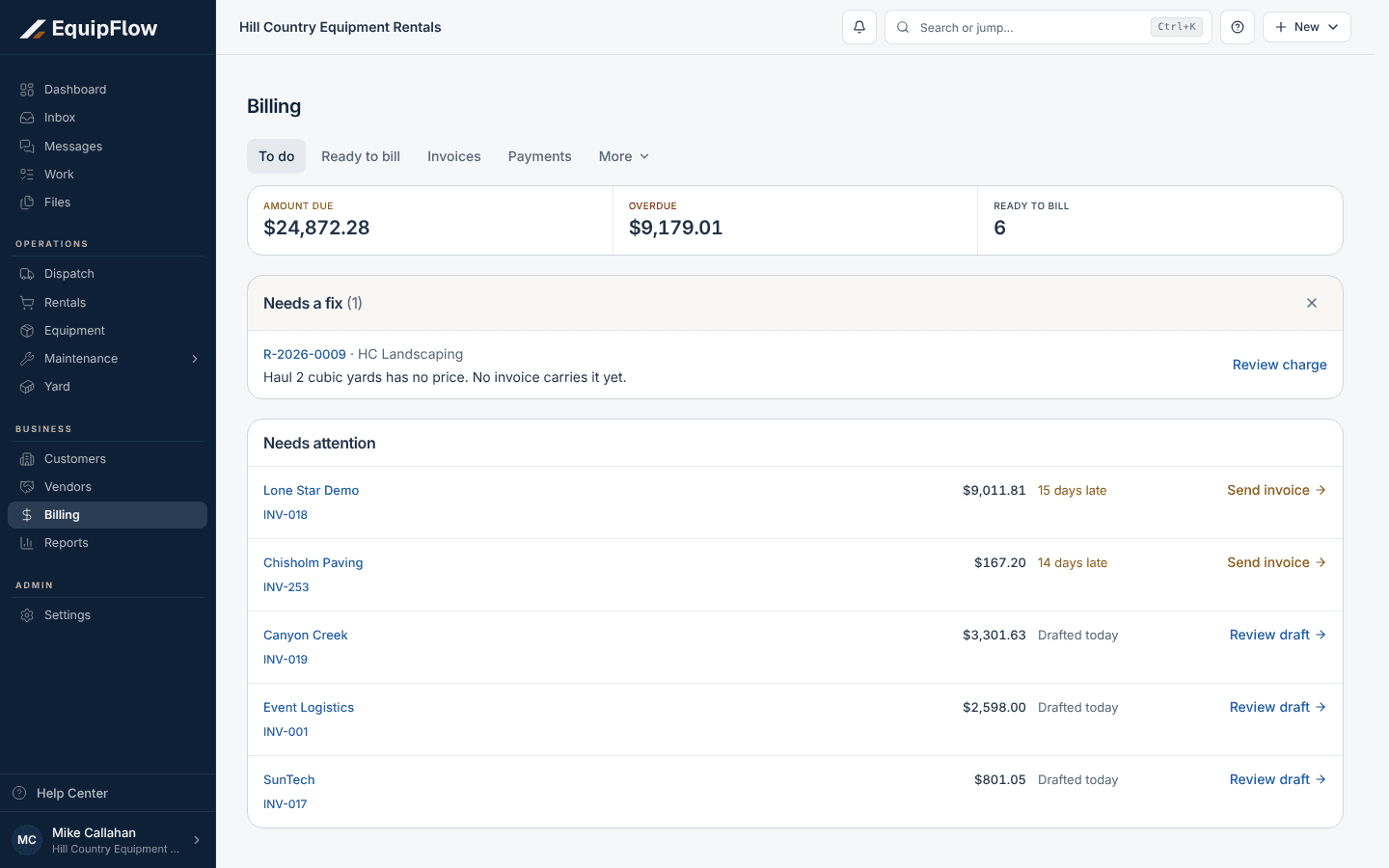
Billing's To do tab shows what is overdue and what needs attention. Synthetic local example.
Open full-size screenshot (new tab)Send a payment reminder
Open the invoice and choose Send reminder from Invoice actions. Check the Subject and Message, edit them if needed, and choose Send reminder. On Invoices, Send reminders emails every invoice that's due a reminder under your schedule.
An Owner turns on Payment reminder emails and sets the Reminder schedule in Settings, Billing, under Automation.
Pause, dispute, or close
From Invoice actions, choose Pause reminders while you talk to the customer. An Owner can choose Mark disputed. Close unpaid stops reminders but keeps the amount owed, and Reopen invoice brings it back.
Send one customer a statement
Take me there →As an Owner, open the customer, then Billing, and choose Statement. Set the As of date and choose Load statement. Under Include invoices, tick the invoices to show, and add a Statement note if you like. Under Delivery, choose Download PDF or Send by email, then Download statement or Send statement. Preview PDF shows it first.
Download statements for many customers
Take me there →As an Owner, open Billing, then More, then Statements. Choose the As of date, Account type, and Balance, tick the accounts, and choose Download statements. You get one PDF with every statement.
Common problems and recovery.
An overdue invoice has no Send reminder.
Reminders go only to invoices already emailed to the customer, with reminders on and no open dispute. Send the invoice first, or choose Resume reminders.
Send reminders says "No reminders due".
No invoice has reached a step in your reminder schedule yet. An Owner can check the schedule in Settings, Billing, under Automation.
The Statement button is greyed out, or Statements says "Statements are unavailable" and "Owner access required to generate account statements."
Only an Owner can create statements. Ask an Owner to send it.
A statement won't go out: "Include at least one invoice before generating the statement." or "Enter an email address to send the statement."
Tick at least one invoice under Include invoices, and enter the Recipient email when sending by email.
Continue in EquipFlow.
Open the product to do the work, or contact support if the saved information does not match what this article describes.
Last reviewed 2026-11-06 against EquipFlow product commit a5b344000.