
Choose your alerts and quiet hours
Published 2026-11-06 · Updated 2026-11-06
Decide what alerts you on this phone or computer, by email, or by text, and set quiet hours, without hiding anything from your Inbox.
Before you start.
- Everyone sets their own alerts. No one can change them for you.
- Everything still reaches your Inbox. These settings only choose what also alerts you.
Steps.
Turn on alerts for this device
Take me there →Open Settings, then Notifications, or open Inbox options, then Notification settings. If your account has device alerts turned on, select Turn on alerts under Phone and computer alerts and allow notifications when your browser asks. The device then appears under Devices getting your alerts. Keep Send alerts to my devices on, and turn on alerts on each phone or computer you use.
On iPhone or iPad, first add EquipFlow to your Home Screen. In Safari, tap Share, then Add to Home Screen, and open EquipFlow from there.
Set quiet hours
Turn on Quiet hours and set Starts, Ends, and Time zone. Nothing alerts you during quiet hours, not even mentions. It all waits in your Inbox.
Choose what can interrupt you
Under What can interrupt you, each row has Device, Email, and Text switches. The rows are Direct messages and mentions, Threads, Work given to you, Things you follow, and Problems and customer replies. Drivers see Your trips and work instead of Work given to you. Email and text start off.
A driver with no phone getting alerts is emailed new trips and trip changes until they choose otherwise.
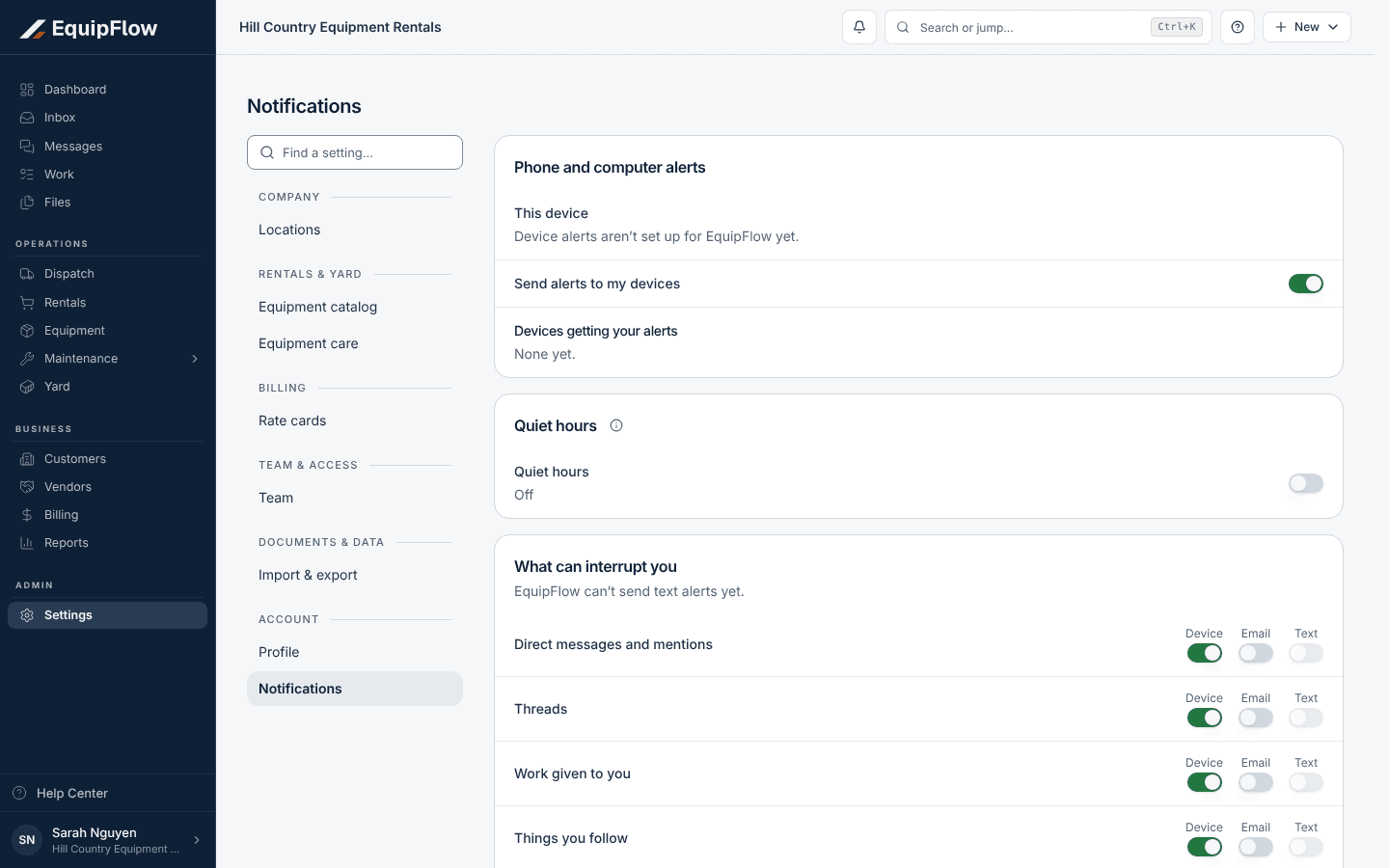
Notifications sets which alerts reach you and when. Device alerts depend on your account's setup. Synthetic local example.
Open full-size screenshot (new tab)Choose where alerts reach you
Under Where to reach you, email alerts go to your sign-in email unless you select Use another email. If text alerts are available for your account, select Add mobile number. Either way, select Send code, enter the six-digit code EquipFlow sends you, then select Confirm. If the page says EquipFlow can’t send text alerts yet., use device or email alerts.
Common problems and recovery.
"Alerts are blocked for EquipFlow in this browser. Allow notifications in your browser or phone settings, then come back to this page."
Allow notifications for EquipFlow in your browser or phone settings, return to Notifications, and select Turn on alerts again.
"This browser can’t show alerts. Chrome, Edge, Firefox and Safari can." or, on iPhone, a note about the Home Screen app.
Switch to one of those browsers. On iPhone or iPad, add EquipFlow to your Home Screen and open it from there.
"Device alerts aren’t set up for EquipFlow yet."
Device alerts are not turned on for your account. Contact EquipFlow support, and choose Email alerts meanwhile.
Quiet hours won't save: "Enter a start and end time, like 9:00 PM and 7:00 AM." or "Quiet hours need different start and end times."
Enter both times, and make sure the start and end are different.
Continue in EquipFlow.
Open the product to do the work, or contact support if the saved information does not match what this article describes.
Last reviewed 2026-11-06 against EquipFlow product commit a5b344000.